As I stated in The Choice Is Yours, given the choice in the future, I would personally recommend and use the "Buy A Domain" wizard for setting up any new domain. Not all bloggers will agree with me on this, as some have additional needs, and prefer to setup their domains with more detail.
If you already own a domain, and maybe have additional components like mail or other servers defined, you'll use the "Advanced Settings" wizard in Blogger - after using the wizard provided by your DNS host to setup the DNS for your domain. If you bought your domain from GoDaddy, you'll use the GoDaddy DNS Manager; if you bought your domain from another registrar, you'll use their DNS Manager.
Note that some basic functions, like payment / domain registration renewal, may be available in the Apps desktop, for Google Apps accounts setup for domains purchased through Blogger. These functions may not be available for domains purchased directly from a registrar, with the Google Apps account setup after purchase.
If you intend to setup additional components for a new domain, you might choose the same procedure, though you'll have more work to do. And the additional work is not unavoidable, because you can setup any new domain using the "Buy A Domain" wizard, then use the wizard provided by your DNS host (the GoDaddy DNS Manager, or any other) to setup any additional components, at your convenience. You can even do this to setup any blog or web site not hosted by Google.
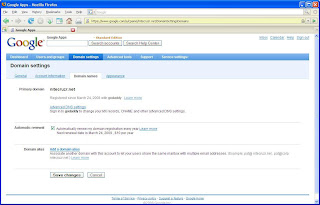
The "Advanced DNS settings" link is where you start. If that link isn't on your screen, you have a problem, and it's time to look for help from Google Apps.
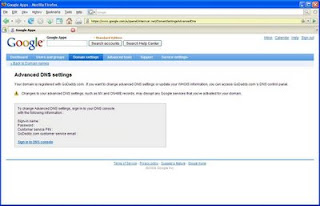
"Advanced DNS settings" has 4 key identity elements, and a URL, to let you use the resources provided by the registrar.
So, use "Advanced Settings" if you already have a working domain. If you don't already have a working domain, start with "Buy A Domain" and concentrate on making the domain easy for your readers to use. Don't waste time setting up the domain on your own.
If you can't find the email from Google Apps, or if you just bought the domain directly from a registrar and Google Apps wasn't involved, you're now here trying to setup your domain in Google Apps. If the domain was never setup in Google Apps, use the Google Apps Sign Up wizard.
If you just bought a popular domain, and that domain has been used by someone else previously, maybe it's already registered in Google Apps. When you go to setup your Google Apps account, you get
In the latter case, you have to go to Google Apps Help, and Google Apps Frequently Reported Issues, and have the domain reset. You'll need to use this procedure also, if you don't have email from Google Apps.
And, if you bought your domain using "Buy a domain" or Google Apps, and you have not yet setup your Google Apps account, please consider this as your wakeup call.
>> Top
If you already own a domain, and maybe have additional components like mail or other servers defined, you'll use the "Advanced Settings" wizard in Blogger - after using the wizard provided by your DNS host to setup the DNS for your domain. If you bought your domain from GoDaddy, you'll use the GoDaddy DNS Manager; if you bought your domain from another registrar, you'll use their DNS Manager.
Note that some basic functions, like payment / domain registration renewal, may be available in the Apps desktop, for Google Apps accounts setup for domains purchased through Blogger. These functions may not be available for domains purchased directly from a registrar, with the Google Apps account setup after purchase.
If you intend to setup additional components for a new domain, you might choose the same procedure, though you'll have more work to do. And the additional work is not unavoidable, because you can setup any new domain using the "Buy A Domain" wizard, then use the wizard provided by your DNS host (the GoDaddy DNS Manager, or any other) to setup any additional components, at your convenience. You can even do this to setup any blog or web site not hosted by Google.
- Setup your new domain, using the "Buy A Domain" wizard.
- Find and open the domain registration confirmation email from Google Apps. Look for email from "google-apps-do-not-reply". If you paid for the domain, but didn't get email from Google Apps, you have to go to Google Apps Help, and Google Apps Frequently Reported Issues, and have the domain reset. Be imaginative, and persistent, in searching for the email message.
- Find, and click on, the link accompanying
If you haven't already created an administrator account for your domain, click the following link:
- Setup an administrator account, for Google Apps, for your domain.
- Login to Google Apps with your administrator account.
- You are now in Google Apps, and looking at the Google Apps dashboard. This is where you start, when recycling domain settings in Google Apps.
- Find, and click on, the "domain names" link at the top of the dashboard, above "Service settings".
- Find, and click on, "Advanced DNS settings".
Sign in to godaddy to change your MX records, CNAME and other advanced DNS settings.
- "Advanced DNS settings" has 4 key identity elements, and a URL.
- Sign-in name.
- Password.
- Customer service PIN.
- Customer service email.
- The URL to login to the GoDaddy (or eNom) DNS Settings wizard.
- Once in the GoDaddy (eNom) wizard, it's the same as if you had purchased the domain on your own, except that you are a Google customer, and enjoy the Google GoDaddy (eNom) Custom Service relationship. Now, you can
- Setup a primary or "www" alias with a "CNAME" referral.
- Setup a primary domain, redirected to the "www" alias.
- Setup additional virtual hosts in your domain.
- Bookmark the Google Apps signon, for future use.

The "Advanced DNS settings" link is where you start. If that link isn't on your screen, you have a problem, and it's time to look for help from Google Apps.

"Advanced DNS settings" has 4 key identity elements, and a URL, to let you use the resources provided by the registrar.
- Sign-in name.
- Password.
- Customer service PIN.
- Customer service email.
- A URL to login to the GoDaddy DNS Settings wizard (if the domain is registered by GoDaddy), or the eNom DNS Settings wizard (if the domain is registered by eNom).
So, use "Advanced Settings" if you already have a working domain. If you don't already have a working domain, start with "Buy A Domain" and concentrate on making the domain easy for your readers to use. Don't waste time setting up the domain on your own.
If you can't find the email from Google Apps, or if you just bought the domain directly from a registrar and Google Apps wasn't involved, you're now here trying to setup your domain in Google Apps. If the domain was never setup in Google Apps, use the Google Apps Sign Up wizard.
If you just bought a popular domain, and that domain has been used by someone else previously, maybe it's already registered in Google Apps. When you go to setup your Google Apps account, you get
This domain has already been registered with Google Apps. Please contact your domain administrator for instructions on using Google Apps with this domain.
In the latter case, you have to go to Google Apps Help, and Google Apps Frequently Reported Issues, and have the domain reset. You'll need to use this procedure also, if you don't have email from Google Apps.
And, if you bought your domain using "Buy a domain" or Google Apps, and you have not yet setup your Google Apps account, please consider this as your wakeup call.
>> Top
Comments
problem is i encounter error 404 - not found. logging on to edit template gives this error - bX-gof3kx
found your blog in my search for the solution to my problem.
my new domain is www.batangueno.net
any idea how to fix this? is it custom domain related problem?
i'll appreaciate your reply.
thanks.
can you help me?
Your domain URL is very distinctive, and I remember your GBH Forum thread. Post back there, and we'll try again.
So now my www.domain.com goes to blog.
And I checked the "Redirect domain.com to www.domain.com" box.
But the domain.com (without the www) does not work.
Isn't it supposed to work with and without the www?
It should, if your DNS is properly setup.
Have you posted yet in GBH: Something Is Broken? If so, and I missed the post, my apologies. The online forums are much easier to use, then Blogger Blog Commenting, for interactive problem solving.
And when you post, please provide the BlogSpot and Custom Domain URLs, so I can troubleshoot the DNS setup.
So, I followed the instructions, but cannot "Find, and click on, "Domain settings", "Domain names", then "Advanced DNS settings" in google apps
I can't login to godaddy either to "Sign in to godaddy to change your MX records, CNAME and other advanced DNS settings."
I bought my domain through google.com so I don't have a godaddy login. I created an acct. with godaddy, but they don't assosiate me with my domain.
Is the solution as simple as buying hosting from godaddy? I thought blogger was my host and I all I need to "buy" was the domain.
I tried just going back to sonjaskitchen.blogspot.com, but get the bX-e3i9af error.
This is such a huge bummer and disappointment. My blog was finally getting somewhere and now it is all ruined. HELP!
Have you posted yet in GBH: Something Is Broken? I'll look for your thread there. The online forums are much easier to use, then Blogger Blog Commenting, for interactive problem solving.
Im about to crawl into a hole over this whole godaddy thing. I have a blog at www.HobokenWorld.blogspot.com and I own www.HobokenWorld.com through godaddy. I followed the dns setup and now all I get is a DNS server error. Any thoughts on what I need to do to resolve this?
The polite and thoughtful way to resolve this is to post in the forum thread, where we are trying to help you. Really, we are trying.
For those that are still going through this...
I'd like to add that while going through the process, I found out that not only does the domain have to be unlocked, but the DNS privacy must be disabled. I got an email from godaddy that outlined the steps:
The private registration for your domain is managed through Domains By Proxy, while the domain registration is managed by us.
You will need to log into your account with Domains By Proxy in order to cancel the privacy service. We have received the following instructions from Domains By Proxy for canceling private registration service for a domain:
• Go to domainsbyproxy.com and click on 'My Account'.
• Log in to your Domains by Proxy account.
-If you do not remember your Domains by Proxy login information, click on the 'Forgot your password?' link to retrieve your customer number and reset your password
• Once logged in, click on 'My Domains'.
• Check the box next to the domain(s) you wish to cancel private registration for.
• Click on 'Continue'.
• Confirm that you wish to cancel the registration by selecting YES.
• Click the 'Submit' button.
You will then receive an email regarding the cancellation. The domain will no longer appear in your Domains by Proxy account, and the cancellation will not affect any other services on the domain such as DNS or email. Please remember that cancellation of the private registration is not refundable.
hope this helps!
You have to know how to use the password reset wizard.
http://blogging.nitecruzr.net/2013/05/the-google-apps-bloggeradmin-password.html